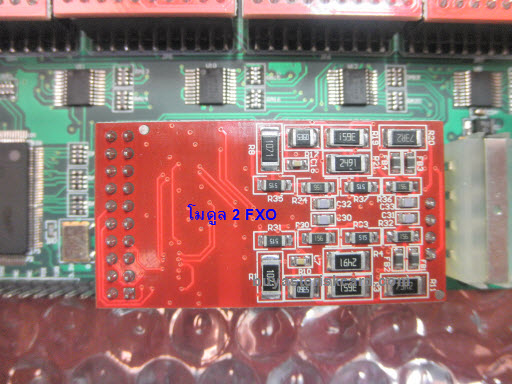
การ์ดรุ่นนี้ยาว 23.5 เซ็นต์ สูง 12 เซ็นต์ หนา 2 เซ็นต์ ติดตั้งในเครื่องได้อย่างสบายๆครับ รายละเอียดของการ์ดดูได้ที่นี่ครับ การ์ด BX1600 16 Ports FXO New Design

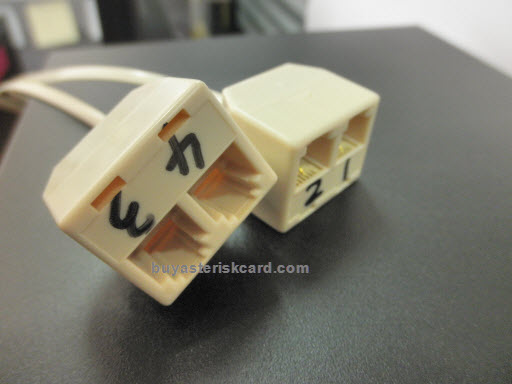
ในกล่องจะแถมสายแยกแปลง RJ-45 เป็น RJ-11 สี่พอร์ตให้ด้วย
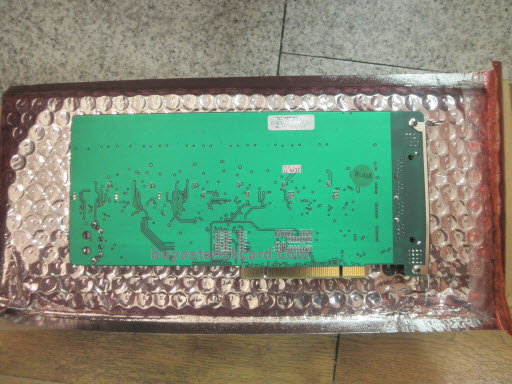
ด้านหลังก็ราบเรียบอย่างในรูป
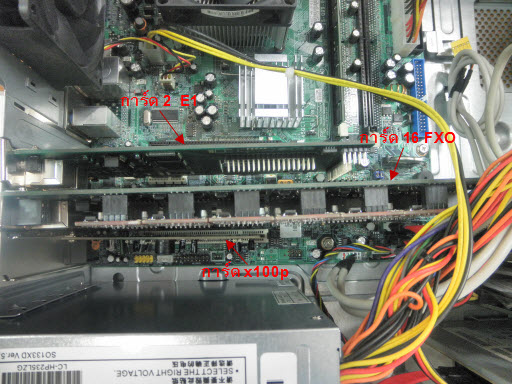
ตัดตั้งในสล๊อตแบบ PCI สังเกตุนะครับว่าการ์ด "ไม่" กินเนื้อที่ของสล๊อตอื่น
สายแปลง RJ-45 เป็น RJ-11 มีเขียนหมายเลขพอร์ตไว้กันงง
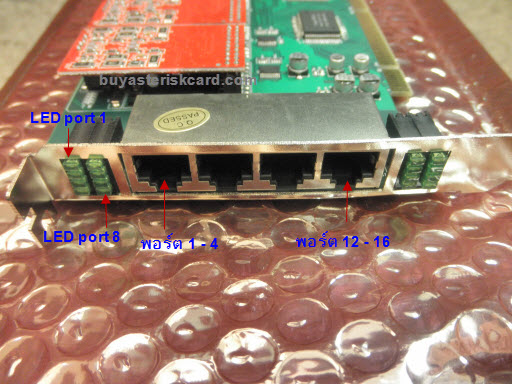
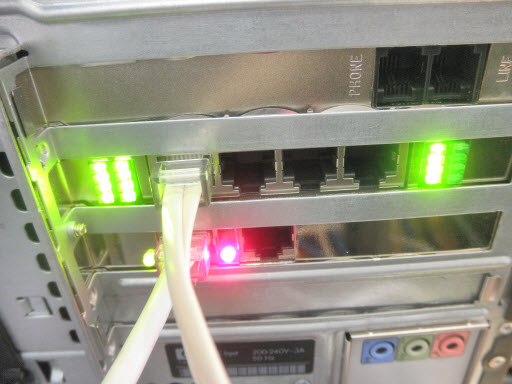
หลอดไฟ LED ด้านหลังการ์ด มีสีเขียวสีเดียวนะครับ ไฟดวงแรกด้านบนซ้ายมือนอกจากจะแสดงสถานะของพอร์ตที่ 1 แล้ว ยังแสดงสถานะของการ์ดอีกด้วยนะครับ ซึ่งหลอดไฟ LED มีแสดงแบบนี้
- ติดนิ่ง (ถ้าเสียบสายโทรศัพท์ และสายมีสัญญาณ) ติดกระพริบถี่ (พอร์ตกำลังใช้งานอยู่) ดับ (ไม่ได้ใส่โมดูลของพอร์ต) ติดกระพริบเป็นจังหวะ (ใส่โมดูแล้วแต่ยังไม่ได้เสียบสายโทรศัพท์)
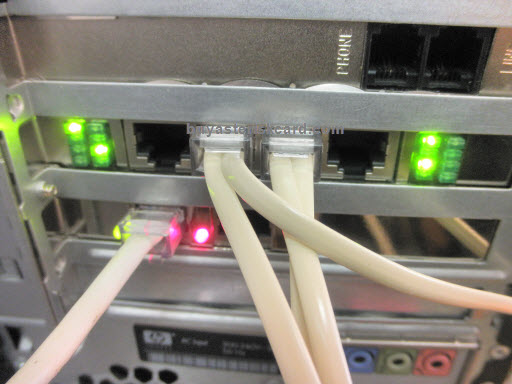
หลอดไฟ LED แสดงสถานะของพอร์ต 7, 9 และ 11
วิธีการติดตั้งก็ไม่มีอะไรยุ่งยาก ตามขั้นตอนต่อไปนี้ครับ
1. ดาวน์โหลด Driver source code
เช็คเวอร์ชั่นของ CentOS ในเครื่องก่อนนะครับ ดีฟอลท์ของ Elastix 2.0.3 เป็น CentOS 5.5 ผมมักจะใช้คำสั่ง cat /etc/redhat-release
- โค้ด: เลือกทั้งหมด
cat /etc/redhat-release
ได้ผลออกมาเป็นแบบนี้
- โค้ด: เลือกทั้งหมด
CentOS release 5.5 (Final)
แสดงว่าเครื่องผมเป็น CentOS 5.5
พอรู้เวอร์ชั่น CentOS แล้ว ก็ดาวน์โหลด Driver ให้ตรงกัน ตามลิ้งค์ต่อไปนี้ครับ
Driver Version 1.2.2 for CentOS 5.5
- โค้ด: เลือกทั้งหมด
wget http://www.voip4share.com/sources/bluenet-linux-1.2.2.tar.bz2
ดาวน์โหลดมาเก็บไว้ก่อน
2. เช็คเวอร์ชั่น Kernel
- โค้ด: เลือกทั้งหมด
uname -r
ได้ว่า Kernel เวอร์ชั่น
2.6.18-194.3.1.el5
3. เช็คเวอร์ชั่น DAHDI
- โค้ด: เลือกทั้งหมด
modinfo /lib/modules/2.6.18-194.3.1.el5/dahdi/dahdi.ko
ได้ว่า...
- โค้ด: เลือกทั้งหมด
filename: /lib/modules/2.6.18-194.3.1.el5/dahdi/dahdi.ko
version: 2.3.0.1
alias: dahdi_dummy
license: GPL v2
description: DAHDI Telephony Interface
author: Mark Spencer <markster@digium.com>
srcversion: 41F355C6A57FFC2BCFAE5FC
depends: crc-ccitt
vermagic: 2.6.18-194.3.1.el5 SMP mod_unload 686 REGPARM 4KSTACKS gcc-4.1
parm: debug:int
parm: deftaps:int
ดูบรรทัด version ครับ แสดงว่าเป็น Dahdi เวอร์ชั่น 2.3.0.1
4. ดาวน์โหลด DAHDI และ OSLEC Source Code
เวอร์ชั่น 2.3.0.1 ดาวน์โหลดมาเพื่อให้ติดตั้ง Driver ได้หน่ะครับ เราไม่ได้จะติดตั้ง DAHDI จริงๆ เพราะมันมีอยู่แล้ว
- โค้ด: เลือกทั้งหมด
wget http://www.voip4share.com/sources/dahdi-linux-complete-2.3.0.1+2.3.0.tar.gz
ส่วน OSLEC เป็น Software Echo Canceller ครับ สุดยอดมากเลยตัวนี้ เราไม่ต้องเสียเงินซื้อ Hardware Echo Canceller แพงๆมาใส่ โหลดจากเว็บนี้ครับ
- โค้ด: เลือกทั้งหมด
wget http://www.voip4share.com/sources/oslec-dahdi.tar.gz
5. แตกไฟล์ซอร์สโค๊ด Driver, DAHDI และ OSLEC
- โค้ด: เลือกทั้งหมด
tar xvf bluenet-linux-1.2.2.tar.bz2 -C /usr/src
tar xzvf dahdi-linux-complete-2.3.0.1+2.3.0.tar.gz -C /usr/src
tar xzvf oslec-dahdi.tar.gz -C /usr/src/dahdi-linux-complete-2.3.0.1+2.3.0/linux/drivers
แก้ไขไฟล์ Kbuild ของ Kernel นิดหน่อย ตามนี้ครับ
- โค้ด: เลือกทั้งหมด
sed -i "s|#obj-m += dahdi_echocan_oslec.o|obj-m += dahdi_echocan_oslec.o|" /usr/src/dahdi-linux-complete-2.3.0.1+2.3.0/linux/drivers/dahdi/Kbuild
echo 'obj-m += echo.o' > /usr/src/dahdi-linux-complete-2.3.0.1+2.3.0/linux/drivers/staging/echo/Kbuild
6. คอมไพล์ซอร์สโค๊ด
6.1 คอมไพล์ซอร์สโค๊ด DAHDI พร้อม OSLEC
คอมไพล์ทับของเก่าไปเลยนะครับ ไม่ต้องกลัวว่าจะเจ้ง มันเป็นเวอร์ชั่นเดียวกัน เวลาติดตั้งก็ไปอยู่ในที่ๆเดียวกัน ของใหม่จะทับของเก่า
- โค้ด: เลือกทั้งหมด
cd /usr/src/dahdi-linux-complete-2.3.0.1+2.3.0
make all
make install
6.2 คอมไพล์ไดร์เวอร์การ์ด FXO
6.2.1 ใช้คำสั่ง configure
- โค้ด: เลือกทั้งหมด
cd /usr/src/bluenet-linux-1.2.2
./configure --prefix=/usr --exec-prefix=/usr --bindir=/usr/bin --sbindir=/usr/sbin --sysconfdir=/etc --localstatedir=/var --with-dahdi=/usr/src/dahdi-linux-complete-2.3.0.1+2.3.0
จะได้ผลเป็นแบบนี้
- โค้ด: เลือกทั้งหมด
checking for gcc... gcc
checking for C compiler default output file name... a.out
checking whether the C compiler works... yes
checking whether we are cross compiling... no
checking for suffix of executables...
checking for suffix of object files... o
checking whether we are using the GNU C compiler... yes
checking whether gcc accepts -g... yes
checking for gcc option to accept ANSI C... none needed
checking how to run the C preprocessor... gcc -E
checking for a BSD-compatible install... /usr/bin/install -c
checking whether ln -s works... yes
checking for grep... /bin/grep
checking for sh... /bin/sh
checking for ln... /bin/ln
checking for an ANSI C-conforming const... yes
checking for inline... inline
checking for egrep... grep -E
checking for ANSI C header files... yes
checking for sys/types.h... yes
checking for sys/stat.h... yes
checking for stdlib.h... yes
checking for string.h... yes
checking for memory.h... yes
checking for strings.h... yes
checking for inttypes.h... yes
checking for stdint.h... yes
checking for unistd.h... yes
checking for off_t... yes
checking for pid_t... yes
checking for size_t... yes
checking whether time.h and sys/time.h may both be included... yes
checking for working volatile... yes
checking for ANSI C header files... (cached) yes
checking for memset... yes
checking for kernel version... 2.6.18-194.3.1.el5
checking for kernel source... /lib/modules/2.6.18-194.3.1.el5/build
checking for dahdi in /usr/src/dahdi-linux-complete-2.3.0.1+2.3.0... yes
configure: creating ./config.status
config.status: creating makeopts
config.status: creating drivers/Kbuild
6.2.2 คอมไพล์
รันคำสั่งนี้
- โค้ด: เลือกทั้งหมด
make
ระหว่างคอมไพล์ถ้าเห็นข้อความเตือนแบบนี้
- โค้ด: เลือกทั้งหมด
echo; \
echo " ERROR: Kernel configuration is invalid."; \
echo " include/linux/autoconf.h or include/config/auto.conf are missing."; \
echo " Run 'make oldconfig && make prepare' on kernel src to fix it."; \
echo; \
/bin/false)
หรือแบบนี้
- โค้ด: เลือกทั้งหมด
WARNING: "dahdi_lboname" [/usr/src/bluenet-linux-1.2.2/drivers/t4xxp/t4xxp.ko] undefined!
WARNING: "dahdi_rbsbits" [/usr/src/bluenet-linux-1.2.2/drivers/t4xxp/t4xxp.ko] undefined!
WARNING: "dahdi_ec_chunk" [/usr/src/bluenet-linux-1.2.2/drivers/t4xxp/t4xxp.ko] undefined!
WARNING: "dahdi_hdlc_finish" [/usr/src/bluenet-linux-1.2.2/drivers/t4xxp/t4xxp.ko] undefined!
WARNING: "dahdi_unregister" [/usr/src/bluenet-linux-1.2.2/drivers/t4xxp/t4xxp.ko] undefined!
WARNING: "dahdi_ec_span" [/usr/src/bluenet-linux-1.2.2/drivers/t4xxp/t4xxp.ko] undefined!
WARNING: "dahdi_receive" [/usr/src/bluenet-linux-1.2.2/drivers/t4xxp/t4xxp.ko] undefined!
WARNING: "dahdi_hdlc_abort" [/usr/src/bluenet-linux-1.2.2/drivers/t4xxp/t4xxp.ko] undefined!
WARNING: "dahdi_qevent_lock" [/usr/src/bluenet-linux-1.2.2/drivers/t4xxp/t4xxp.ko] undefined!
WARNING: "dahdi_register" [/usr/src/bluenet-linux-1.2.2/drivers/t4xxp/t4xxp.ko] undefined!
WARNING: "dahdi_transmit" [/usr/src/bluenet-linux-1.2.2/drivers/t4xxp/t4xxp.ko] undefined!
WARNING: "dahdi_hdlc_getbuf" [/usr/src/bluenet-linux-1.2.2/drivers/t4xxp/t4xxp.ko] undefined!
WARNING: "dahdi_alarm_notify" [/usr/src/bluenet-linux-1.2.2/drivers/t4xxp/t4xxp.ko] undefined!
WARNING: "dahdi_hdlc_putbuf" [/usr/src/bluenet-linux-1.2.2/drivers/t4xxp/t4xxp.ko] undefined!
WARNING: "dahdi_register" [/usr/src/bluenet-linux-1.2.2/drivers/bl1600a.ko] undefined!
WARNING: "dahdi_transmit" [/usr/src/bluenet-linux-1.2.2/drivers/bl1600a.ko] undefined!
WARNING: "dahdi_receive" [/usr/src/bluenet-linux-1.2.2/drivers/bl1600a.ko] undefined!
WARNING: "dahdi_ec_chunk" [/usr/src/bluenet-linux-1.2.2/drivers/bl1600a.ko] undefined!
WARNING: "dahdi_qevent_lock" [/usr/src/bluenet-linux-1.2.2/drivers/bl1600a.ko] undefined!
WARNING: "dahdi_alarm_channel" [/usr/src/bluenet-linux-1.2.2/drivers/bl1600a.ko] undefined!
WARNING: "dahdi_hooksig" [/usr/src/bluenet-linux-1.2.2/drivers/bl1600a.ko] undefined!
WARNING: "dahdi_unregister" [/usr/src/bluenet-linux-1.2.2/drivers/bl1600a.ko] undefined!
ก็ไม่ต้องสนใจครับ ให้ติดตั้งได้เลย รันคำสั่งนี้ (แต่ถ้าข้อความ Error มันไม่ใช่แบบที่ผมโพสต์ไว้ก็แสดงว่าเป็นปัญหาอย่างอื่นนะครับ ไว้มาดูกันอีกที ถ้าไม่มี Error อย่างอื่นก็ติดตั้งต่อได้เลย)
- โค้ด: เลือกทั้งหมด
make install
เจอข้อความ Error แบบข้างบนอีกก็ไม่ต้องสนใจครับ แต่ถ้าข้อความ Error มันไม่ใช่แบบที่ผมโพสต์ไว้ก็แสดงว่าเป็นปัญหาอย่างอื่นนะครับ ไว้มาดูกันอีกที ถ้าไม่มี Error อย่างอื่นอีกก็เป็นอันว่าติดตั้งสำเร็จครับ
6.2.3 เช็คในไฟล์ /etc/dahdi/genconf_parameters
เพิ่มบรรทัดนี้เข้าไปนะครับ ถ้าเช็คแล้วยังไม่มี
- โค้ด: เลือกทั้งหมด
context_lines from-zaptel
echo_can oslec
6.2.4 เช็คดูในไฟล์ /etc/dahdi/modules
จะเห็นมี 2 บรรทัดต่อไปนี้เพิ่มขึ้นมา
- โค้ด: เลือกทั้งหมด
t4xxp
bl1600a
อาจจะใส่เครื่องหมาย # ข้างหน้าบรรทัด t4xxp ก็ได้ เพราะเป็นไดร์เวอร์ของการ์ด e1 หน่ะครับ
6.2.5 รีสตาร์ทเครื่อง
- โค้ด: เลือกทั้งหมด
reboot
** เน้นว่าติดตั้งเสร็จแล้ว ต้องรีบู๊ตเครื่องก่อนเลยนะครับ **
7. สร้างไฟล์คอนฟิกของการ์ด 16 FXO
พิมพ์คำสั่งนี้
- โค้ด: เลือกทั้งหมด
dahdi_genconf
เช็คไฟล์ /etc/dahdi/system.conf จะมีข้อมูลแบบนี้
ในเครื่องมีการ์ดอื่นอยู่ด้วยแล้วครับ ก็เลยเห็นเป็น Span 3 และพอร์ตก็เริ่มจาก 63 แทนที่จะเป็น 1
- โค้ด: เลือกทั้งหมด
# Span 3: WCTDM/0 "Bluenet BL1600A Rev 1.00 Board 1"
fxsks=63
echocanceller=oslec,63
fxsks=64
echocanceller=oslec,64
fxsks=65
echocanceller=oslec,65
fxsks=66
echocanceller=oslec,66
fxsks=67
echocanceller=oslec,67
fxsks=68
echocanceller=oslec,68
fxsks=69
echocanceller=oslec,69
fxsks=70
echocanceller=oslec,70
fxsks=71
echocanceller=oslec,71
fxsks=72
echocanceller=oslec,72
fxsks=73
echocanceller=oslec,73
fxsks=74
echocanceller=oslec,74
# channel 75, WCTDM/0/12, no module.
# channel 76, WCTDM/0/13, no module.
# channel 77, WCTDM/0/14, no module.
# channel 78, WCTDM/0/15, no module.
อีก 2 โมดูล (4 พอร์ต) สุดท้ายผมไม่ได้ใส่โมดูลไว้ ก็เลยเห็นเป็น "no module" ครับ
และที่ไฟล์ /etc/asterisk/dahdi-channels.conf จะมีข้อมูลแบบนี้
- โค้ด: เลือกทั้งหมด
; Span 3: WCTDM/0 "Bluenet BL1600A Rev 1.00 Board 1"
;;; line="63 WCTDM/0/0 FXSKS (In use) (SWEC: OSLEC)"
signalling=fxs_ks
callerid=asreceived
group=0
context=from-zaptel
channel => 63
callerid=
group=
context=default
;;; line="64 WCTDM/0/1 FXSKS (In use) (SWEC: OSLEC)"
signalling=fxs_ks
callerid=asreceived
group=0
context=from-zaptel
channel => 64
callerid=
group=
context=default
;;; line="65 WCTDM/0/2 FXSKS (In use) (SWEC: OSLEC)"
signalling=fxs_ks
callerid=asreceived
group=0
context=from-zaptel
channel => 65
callerid=
group=
context=default
;;; line="66 WCTDM/0/3 FXSKS (In use) (SWEC: OSLEC)"
signalling=fxs_ks
callerid=asreceived
group=0
context=from-zaptel
channel => 66
callerid=
group=
context=default
;;; line="67 WCTDM/0/4 FXSKS (In use) (SWEC: OSLEC)"
signalling=fxs_ks
callerid=asreceived
group=0
context=from-zaptel
channel => 67
callerid=
group=
context=default
;;; line="68 WCTDM/0/5 FXSKS (In use) (SWEC: OSLEC)"
signalling=fxs_ks
callerid=asreceived
group=0
context=from-zaptel
channel => 68
callerid=
group=
context=default
;;; line="69 WCTDM/0/6 FXSKS (In use) (SWEC: OSLEC)"
signalling=fxs_ks
callerid=asreceived
group=0
context=from-zaptel
channel => 69
callerid=
group=
context=default
;;; line="70 WCTDM/0/7 FXSKS (In use) (SWEC: OSLEC)"
signalling=fxs_ks
callerid=asreceived
group=0
context=from-zaptel
channel => 70
callerid=
group=
context=default
;;; line="71 WCTDM/0/8 FXSKS (In use) (SWEC: OSLEC)"
signalling=fxs_ks
callerid=asreceived
group=0
context=from-zaptel
channel => 71
callerid=
group=
context=default
;;; line="72 WCTDM/0/9 FXSKS (In use) (SWEC: OSLEC)"
signalling=fxs_ks
callerid=asreceived
group=0
context=from-zaptel
channel => 72
callerid=
group=
context=default
;;; line="73 WCTDM/0/10 FXSKS (In use) (SWEC: OSLEC)"
signalling=fxs_ks
callerid=asreceived
group=0
context=from-zaptel
channel => 73
callerid=
group=
context=default
;;; line="74 WCTDM/0/11 FXSKS (In use) (SWEC: OSLEC)"
signalling=fxs_ks
callerid=asreceived
group=0
context=from-zaptel
channel => 74
callerid=
group=
context=default
รีสตาร์ทเครื่องอีกครั้ง
- โค้ด: เลือกทั้งหมด
reboot
ลองเช็คสถานะจากคำสั่งต่อไปนี้ดูครับ (ไม่ต้องก็ได้)
- โค้ด: เลือกทั้งหมด
[root@elastix-a ~]# dahdi_hardware
driver should be 'wcopenpci' but is actually 'bl1600a'
pci:0000:04:02.0 wcopenpci+ e159:0001 Voicetronix OpenPCI
มันแสดงแบบนี้ออกมาก็ไม่ต้องตกใจครับ เป็นเพราะว่าคำสั่ง dahdi_hardware เอาไว้ใช้กับการ์ดของ Digium หากเป็นการ์ดยี่ห้ออื่นบางทีก็ไม่โชว์หรือโชว์แบบเพี้ยนๆ ก็ช่างมันครับ
- โค้ด: เลือกทั้งหมด
elastix-a*CLI> dahdi show status
Description Alarms IRQ bpviol CRC4 Fra Codi Options LBO
Bluenet BL1600A Rev 1.00 Board 1 OK 0 0 0 CAS Unk 0 db (CSU)/0-133 feet (DSX-1)
8. เช็คจากหน้าเว็บ Hardware Detector ของ Elastix
หน้าเว็บ Hardware Detector จะโชว์เป็นแบบนี้ครับ "ไม่ต้องกดปุ่ม Detect New Hardware นะครับ"

** ถ้ายังเห็นข้อความว่า Not Detected By Asterisk ก็ให้รีสตาร์ท amportal ใหม่ครับ ด้วยคำสั่ง amportal restart **
ก็เป็นอันว่าติดตั้งการ์ด 16 FXO นี้บน Elastix ผ่านไปด้วยดี ต่อไปก็คอนฟิกใช้งาน
9.คอนฟิกการ์ด 16 FXO บน Elastix
ขั้นตอนการคอนฟิกใช้งานพอร์ต FXO บนการ์ดนี้ ก็ทำเหมือนกับคอนฟิกการ์ดประเภทอื่นๆของ Asterisk ครับ ได้แก่ คอนฟิก DAHDI Trunks, Outbound Routes, ZAP Channel DIDs, Inbound Routes
9.1 คอนฟิกให้รับสายเข้า
เมนู ZAP Channel DIDs

เมนู Inbound Routes

9.2 คอนฟิกให้โทรออก
9.2.1 โทรโดยระบุพอร์ตที่จะใช้โทรออก
เมนู Trunks
การ์ด 16 FXO ในเครื่องผมเริ่มตั้งแต่พอร์ต 63 - 74 (ดูจากรูป Hardware Detector ข้างบน หรือจากคำสั่ง service dhadi status ก็ได้) ถ้าผมต้องการโทรออกทางพอร์ตแรก คือพอร์ตเบอร์ 63 ผมก็คอนฟิกแบบนี้

เมนู Outbound Routes
กำหนดว่ากด 5 ตามด้วยอะไรก็ได้ จะส่งออกทางพอร์ตหมายเลข 63

9.2.2 โทรออกโดยไม่ระบุพอร์ต แต่ขอให้ออกทางการ์ด 16 FXO นี้
เนื่องจากในเครื่องผมตอนนี้มีการ์ด Asterisk อื่นๆอยู่ด้วยนอกเหนือจาก 16 FXO การ์ดนี้ และทุกการ์ดก็อยู่ใน Group 0 หมด ผมจะเปลี่ยน group ของการ์ด 16 FXO นี้ให้เป็น group 10 เพื่อไม่ให้ปนกับการ์ดอื่นๆ
ไฟล์ /etc/asterisk/dahdi-channels.conf เปลี่ยนบรรทัด group=0 เป็น group=10
; Span 3: WCTDM/0 "Bluenet BL1600A Rev 1.00 Board 1"
;;; line="63 WCTDM/0/0 FXSKS (In use) (SWEC: OSLEC)"
signalling=fxs_ks
callerid=asreceived
group=10
context=from-zaptel
channel => 63
callerid=
group=
context=default
;;; line="64 WCTDM/0/1 FXSKS (In use) (SWEC: OSLEC)"
signalling=fxs_ks
callerid=asreceived
group=10
context=from-zaptel
channel => 64
callerid=
group=
context=default
;;; line="65 WCTDM/0/2 FXSKS (In use) (SWEC: OSLEC)"
signalling=fxs_ks
callerid=asreceived
group=10
context=from-zaptel
channel => 65
callerid=
group=
context=default
;;; line="66 WCTDM/0/3 FXSKS (In use) (SWEC: OSLEC)"
signalling=fxs_ks
callerid=asreceived
group=10
context=from-zaptel
channel => 66
callerid=
group=
context=default
เซฟไฟล์ แล้วรันคำสั่ง
- โค้ด: เลือกทั้งหมด
asterisk -rx "dahdi restart"
เช็ค รันคำสั่ง
- โค้ด: เลือกทั้งหมด
asterisk -rx "dahdi show channels group 10"
ผลลัพธ์
- โค้ด: เลือกทั้งหมด
Chan Extension Context Language MOH Interpret Blocked State
63 from-zaptel default In Service
64 from-zaptel default In Service
65 from-zaptel default In Service
66 from-zaptel default In Service
พอร์ต 63-66 เปลี่ยนเป็น group 10 แล้ว (ผมทำแค่บางพอร์ต)
คอนฟิก Trunks

คอนฟิก Outbound Route

10. ถ้าต้องการถอนการติดตั้ง ไม่ยากครับ ทำดังนี้
- โค้ด: เลือกทั้งหมด
cd /usr/src/bluenet-linux-1.2.2
make uninstall
จะมีข้อความขึ้นแบบนี้
- โค้ด: เลือกทั้งหมด
checking for gcc... gcc
checking for C compiler default output file name... a.out
checking whether the C compiler works... yes
checking whether we are cross compiling... no
checking for suffix of executables...
checking for suffix of object files... o
checking whether we are using the GNU C compiler... yes
checking whether gcc accepts -g... yes
checking for gcc option to accept ANSI C... none needed
checking how to run the C preprocessor... gcc -E
checking for a BSD-compatible install... /usr/bin/install -c
checking whether ln -s works... yes
checking for grep... /bin/grep
checking for sh... /bin/sh
checking for ln... /bin/ln
checking for an ANSI C-conforming const... yes
checking for inline... inline
checking for egrep... grep -E
checking for ANSI C header files... yes
checking for sys/types.h... yes
checking for sys/stat.h... yes
checking for stdlib.h... yes
checking for string.h... yes
checking for memory.h... yes
checking for strings.h... yes
checking for inttypes.h... yes
checking for stdint.h... yes
checking for unistd.h... yes
checking for off_t... yes
checking for pid_t... yes
checking for size_t... yes
checking whether time.h and sys/time.h may both be included... yes
checking for working volatile... yes
checking for ANSI C header files... (cached) yes
checking for memset... yes
checking for kernel version... 2.6.18-194.3.1.el5
checking for kernel source... /lib/modules/2.6.18-194.3.1.el5/build
checking for dahdi version... 2.3.0.1
checking for dahdi in /usr/src/bluenet-linux-1.2.2/dl/dahdi-linux-2.3.0.1... yes
configure: creating ./config.status
config.status: creating makeopts
config.status: creating drivers/Kbuild
make[1]: Entering directory `/usr/src/bluenet-linux-1.2.2'
make -C /lib/modules/2.6.18-194.3.1.el5/build V=1 SUBDIRS=/usr/src/bluenet-linux-1.2.2/drivers HOTPLUG_FIRMWARE=yes clean
make[2]: Entering directory `/usr/src/kernels/2.6.18-194.3.1.el5-i686'
make -f scripts/Makefile.clean obj=/usr/src/bluenet-linux-1.2.2/drivers
make -f scripts/Makefile.clean obj=/usr/src/bluenet-linux-1.2.2/drivers/t4xxp
rm -rf /usr/src/bluenet-linux-1.2.2/drivers/.tmp_versions
make[2]: Leaving directory `/usr/src/kernels/2.6.18-194.3.1.el5-i686'
make -C drivers/firmware clean
make[2]: Entering directory `/usr/src/bluenet-linux-1.2.2/drivers/firmware'
rm -f dahdi-fw-*.o
make[2]: Leaving directory `/usr/src/bluenet-linux-1.2.2/drivers/firmware'
make[1]: Leaving directory `/usr/src/bluenet-linux-1.2.2'
rm -rf /lib/modules/2.6.18-194.3.1.el5/bluenet
[ `id -u` = 0 ] && /sbin/depmod -a 2.6.18-194.3.1.el5 || :
รีบู๊ตเครื่อง
- โค้ด: เลือกทั้งหมด
reboot
ลบข้อมูลในไฟล์คอนฟิก /etc/dahdi/system.conf และ /etc/sysconfig/dahdi-channels.conf
- โค้ด: เลือกทั้งหมด
dahd_genconf
ขอขอบคุณเว็บไซต์ http://www.buyasteriskcard.com ที่เอื้อเฟื้ออุปกรณ์ให้ทดสอบ
บทความที่เกี่ยวข้อง
เทคนิคการติดตั้งการ์ด 16 FXO บน Asterisk
เทคนิคการติดตั้งการ์ด 16 FXO บน Elastix 2.0.3
เทคนิคการติดตั้งการ์ด 16 FXO บน Elastix 2.2.0
เทคนิคการติดตั้งการ์ด 16 FXO บน Elastix 2.3.0
